
Create and publish an event
Create an event in MJX Events — name it, fill in Setup (Basics, Tickets, Checkout, Photos & videos), choose online or offline sales and publish.
In MJX Events an event starts as a draft with just a name. You fill in its Setup, choose where you sell tickets, and publish it when you are ready. Nothing is live until you publish.
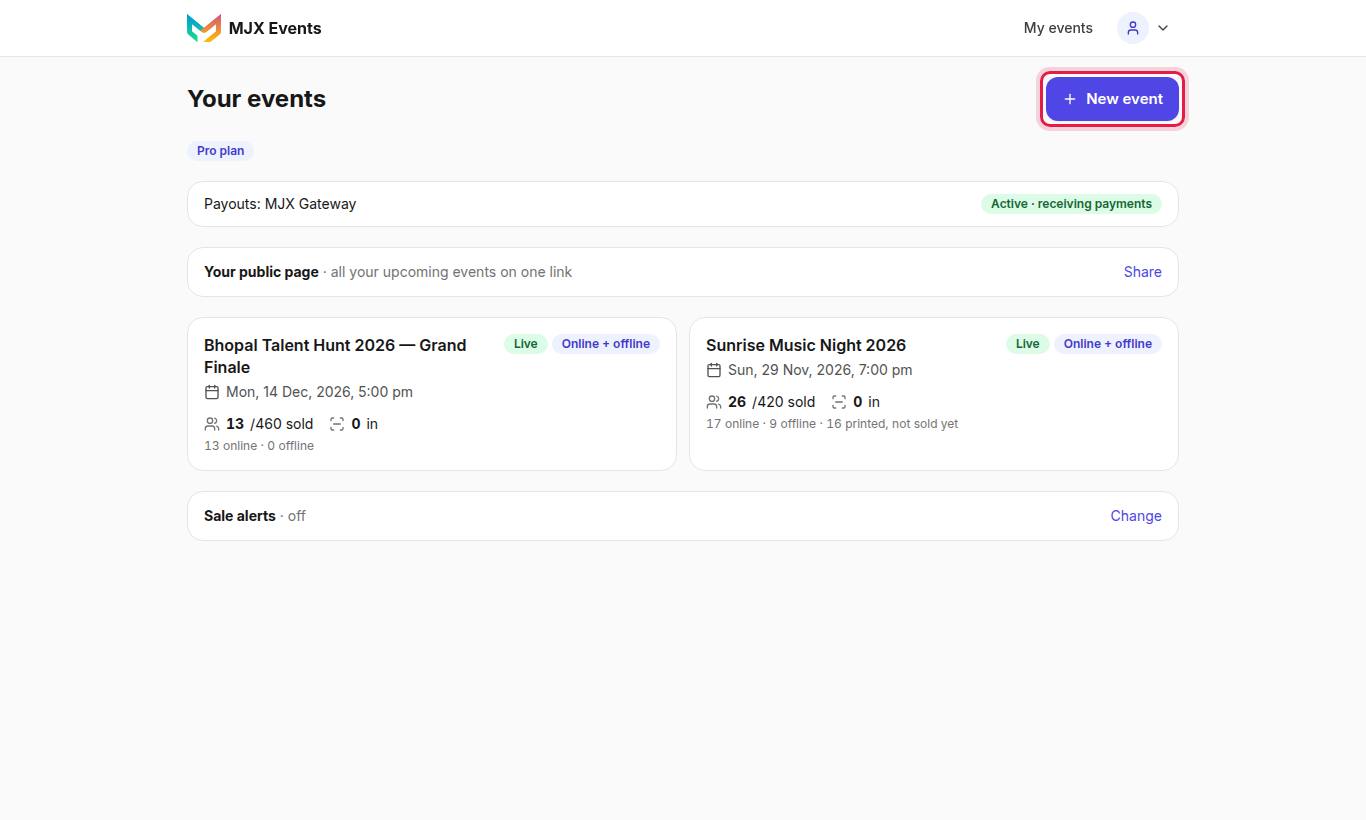
#How to create an event
- On Your events (~/dashboard) tap New event.
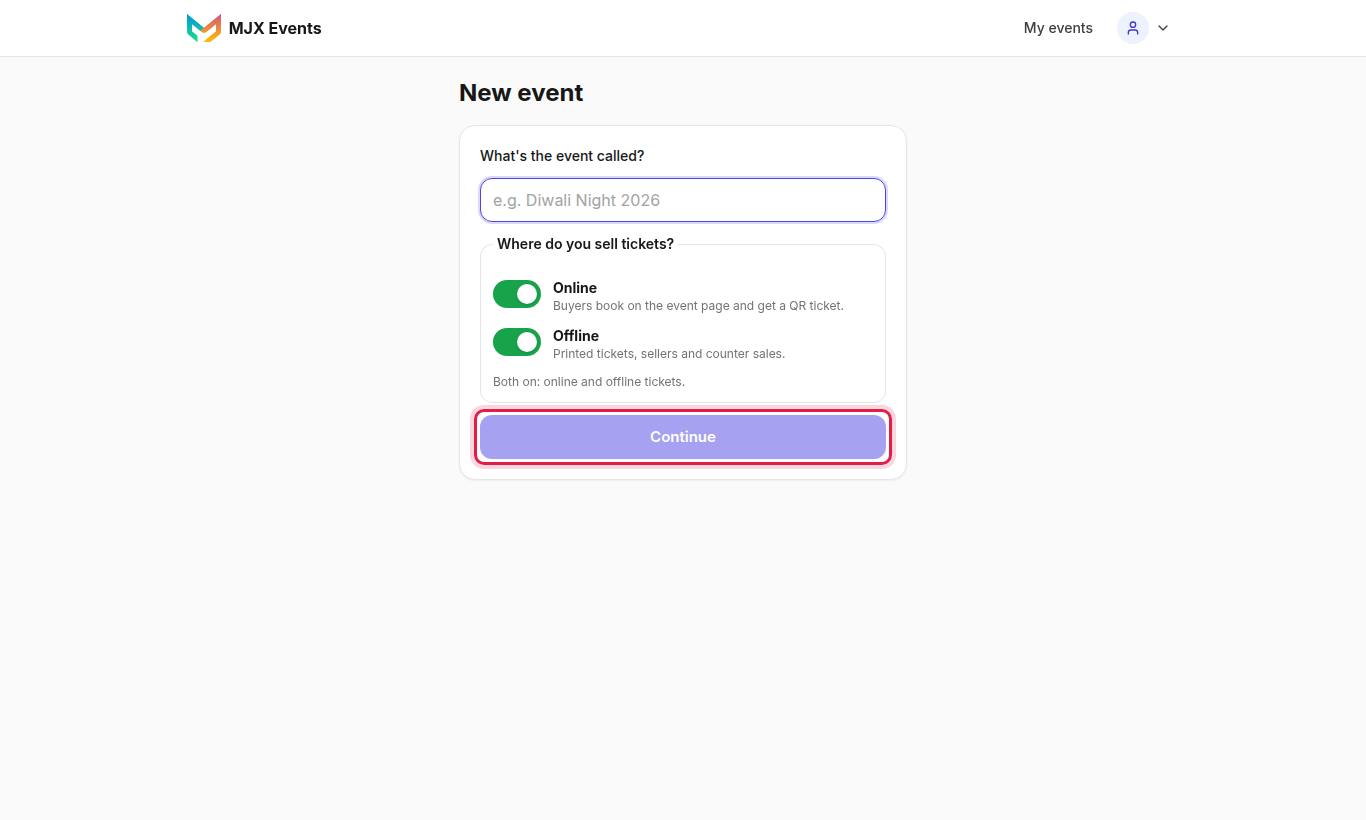
- Under What's the event called? type the name (for example "Diwali Night 2026") and tap Continue.
- Setup opens with Basics open and one free "General" ticket type.
#What is in Setup?
Setup is a list of sections. Each bar says what is inside; tap one to open it. Opening another never closes the first.
| Section | What you set |
|---|---|
| Basics | Event title, Starts (IST), Ends (optional), Venue, City, Open every day (attraction) (a water park / museum open daily — buyers pick a visit date, and you set the daily Opens/Closes times), Cover image (optional), Description, and Where do you sell tickets? |
| Tickets | Ticket types, prices, quantities, people per ticket, day passes, early bird — see Ticket types and prices |
| Ticket design | Your picture and style on the tickets — see Ticket design |
| Highlights & partners | An extra page after the tickets with highlights and sponsor logos |
| Checkout | Who pays the fees, names, questions, ticket passing — see Checkout options |
| Photos & videos | The event gallery — see Photos and videos |
| Publish | Publish, close sales, back to draft, duplicate |
Changes save by themselves. Dates and times are picked, not typed, and are in India time (IST).
#Where do you sell tickets?
At the top of Basics there are two switches:
| Switch | On means |
|---|---|
| Online | "Buyers book on the event page and get a QR ticket." |
| Offline | "Printed tickets, sellers and counter sales." |
- Both on: online and offline tickets.
- Only Online: online tickets only.
- Only Offline: "Offline tickets only. The event page shows the prices."
- Both off: "ticket sales are off. The event page shows the event and its prices, “not on sale right now”."
If a switch says "Switched off for your account by MJX.", contact MJX support.
#How to publish
- Open Publish in Setup.
- Tap Publish event.
- You see "Your event is live. Share this link:" with View event page.
#Why publishing can be refused
| Message | What to do |
|---|---|
| "Add a title first." | Fill in Event title in Basics. |
| "Add at least one ticket type first." | Add a ticket type under Tickets. |
| "Add your bank account so we can send you your sales." | Paid online tickets need Get paid first. Tap Set up payouts. |
| "The Free plan allows one live event at a time. Close sales on "…" first, or upgrade to Plus (Plan) for more events." | Close another event, or upgrade. |
| "Your account expired on … It is view-only…" | Renew on Plan & invoices. |
#Close, reopen, unpublish
- Close sales — "Sales are closed. The event page stays visible; nobody can buy."
- Reopen sales — opens booking again.
- Back to draft — takes the event off sale and back to a draft.
After the event date, online booking closes by itself: "The event's date has passed, so online booking closed by itself. Reopen sales if you still want to sell." Tickets already sold still get in at the gate.
#Duplicate or delete
- Duplicate this event makes a draft with the same details, settings and ticket types. A past event moves forward by whole weeks. Discount codes are not copied.
- Delete event is in the app (Setup → Publish). Only the owner can delete events. In Setup, Delete next to a ticket type removes that type.
#The event's tabs
After the event is created, these tabs appear at the top: Overview, Setup, Attendees, Sell more (Pro), Insights (Pro), Offline tickets, Import QR, Payouts and Scanner. Staff see only Overview, Attendees, Offline tickets and Scanner.
#Questions people ask
Is there a Save button in Setup?
No. Setup saves by itself while you type, and anything unsaved is sent when you leave the field or the page.
Why does my paid event stay a draft?
A paid event needs your bank details under Get paid before it can go live online. Free events and offline-only events don't.
What happens after the event date?
Online booking closes by itself at the event's end time (or at midnight after the start day). You can tap Reopen sales if you still want to sell. The gate keeps scanning.
Can I copy last year's event?
Yes. In Setup tap Duplicate this event. You get a draft with the same details, settings and ticket types; discount codes are not copied.