
Ticket design, invitation cards and partner logos
Design your ticket in MJX Events — add your logo, photo or poster, choose a ticket style (Clear, Stub, Soft, Invitation), add highlights and sponsor logos, and see a sample. No designer or printer setup needed.
The ticket PDF your buyers get by email and WhatsApp can carry your own picture and look. In MJX Events this is set once per event in Setup, and printed "designer" tickets use the same design.
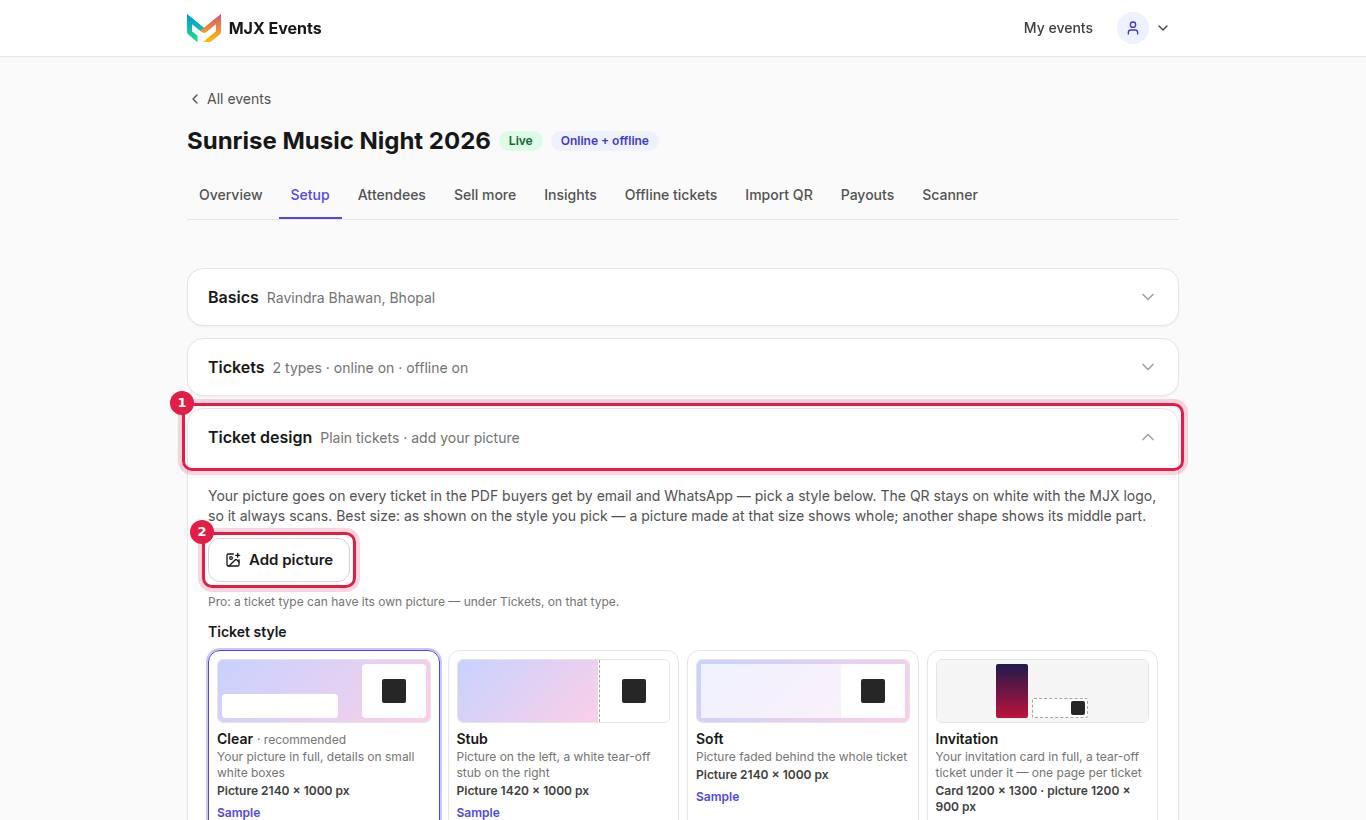
#Design your ticket
On the plan pages this feature is called Design your ticket: add your logo, photo or poster and pick a style — tickets come ready to print and share, no designer or printer setup needed. You do not need to make anything in another app or send anything to a printer; MJX Events builds the ticket PDF from your picture.
"Your picture goes on every ticket in the PDF buyers get by email and WhatsApp — pick a style below. The QR stays on white with the MJX logo, so it always scans."
This is on Plus and Pro by default. On Free the section says "Not on your plan: put your picture behind every ticket buyers get by email and WhatsApp." with See plans.
#How to set it
- Open Ticket design and upload your picture (under 8 MB).
- Choose a Ticket style.
- Tap See a sample ticket to check it.
| Ticket style | Look | Best picture size |
|---|---|---|
| Clear | "Your picture in full, details on small white boxes" | 2140 × 1000 |
| Stub | "Picture on the left, a white tear-off stub on the right" | 1420 × 1000 |
| Soft | "Picture faded behind the whole ticket" | 2140 × 1000 |
| Invitation | "Your invitation card in full, a tear-off ticket under it — one page per ticket" | Card 1200 × 1300; ticket picture 1200 × 900 |
#Invitation card
"Your full invitation card — Hindi, logos and sponsors are fine. Each ticket gets its own page: your card in full, with a tear-off ticket and QR under it. Until you add a card, tickets print in the Clear style."
#Design per ticket type (Pro)
On the plan pages this is Design per ticket type: VIP, Child and other types can each look different.
"Pro: a ticket type can have its own picture — under Tickets, on that type." The field is Ticket picture for this type (Pro, optional — else the event's).
#Highlights & partners
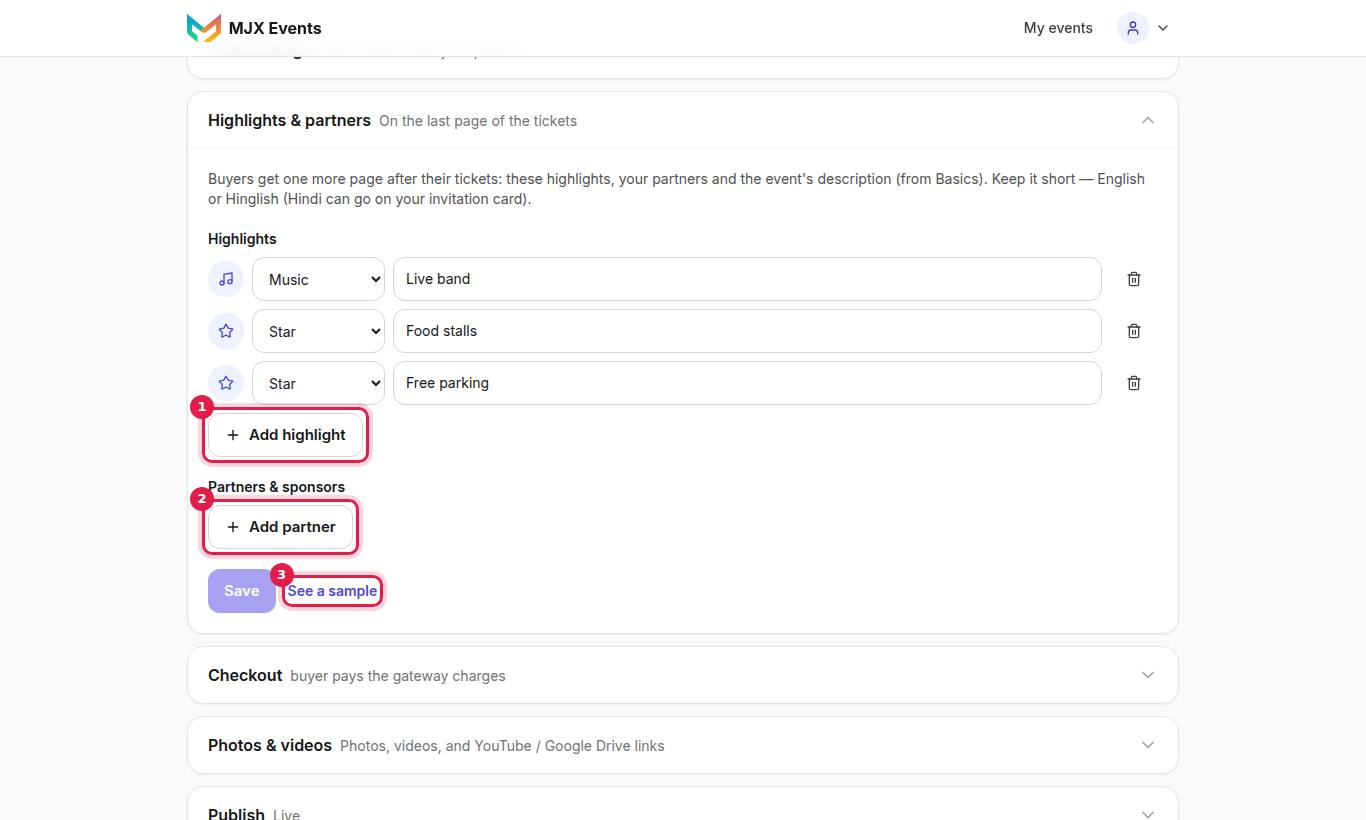
"Buyers get one more page after their tickets: these highlights, your partners and the event's description (from Basics). Keep it short — English or Hinglish (Hindi can go on your invitation card)."
- Under Highlights, pick an Icon and type a Highlight (e.g. "Soulful unplugged music"). Tap Add highlight.
- Under Partners & sponsors, choose a Label (e.g. "Hospitality partner", or Other… for Your label), upload a logo (or No logo) and tap Add partner.
- Tap See a sample.
On a plan without it: "Not on your plan: add a page after the tickets with what your event offers (music, food, games…) and your sponsors' logos."
#Printed tickets in your design
On Offline tickets, the PDF menu has Designer tickets ("Your ticket design, 3 per A4 page, colour") and QR sheet ("Small QRs, 12 per A4 page"). See Printed tickets.
#Questions people ask
Will my picture stop the QR from scanning?
No. The QR always stays on white with the MJX logo in the middle, so it scans.
What size should my picture be?
Each style shows its best size. A picture made at that size shows whole; another shape shows its middle part.
Can each ticket type have its own picture?
Yes, on the Pro plan (by default). Set it under Tickets, on that type.