
Check-in and QR scanning at the gate
Set up gate scanning in MJX Events — share the scanner link and PIN, scan yourself, see which gate phones are online, gate location and offline scanning.
MJX Events turns any phone into a gate scanner. You give your gatekeepers a link and a 6-digit PIN; they need no account and can only scan.
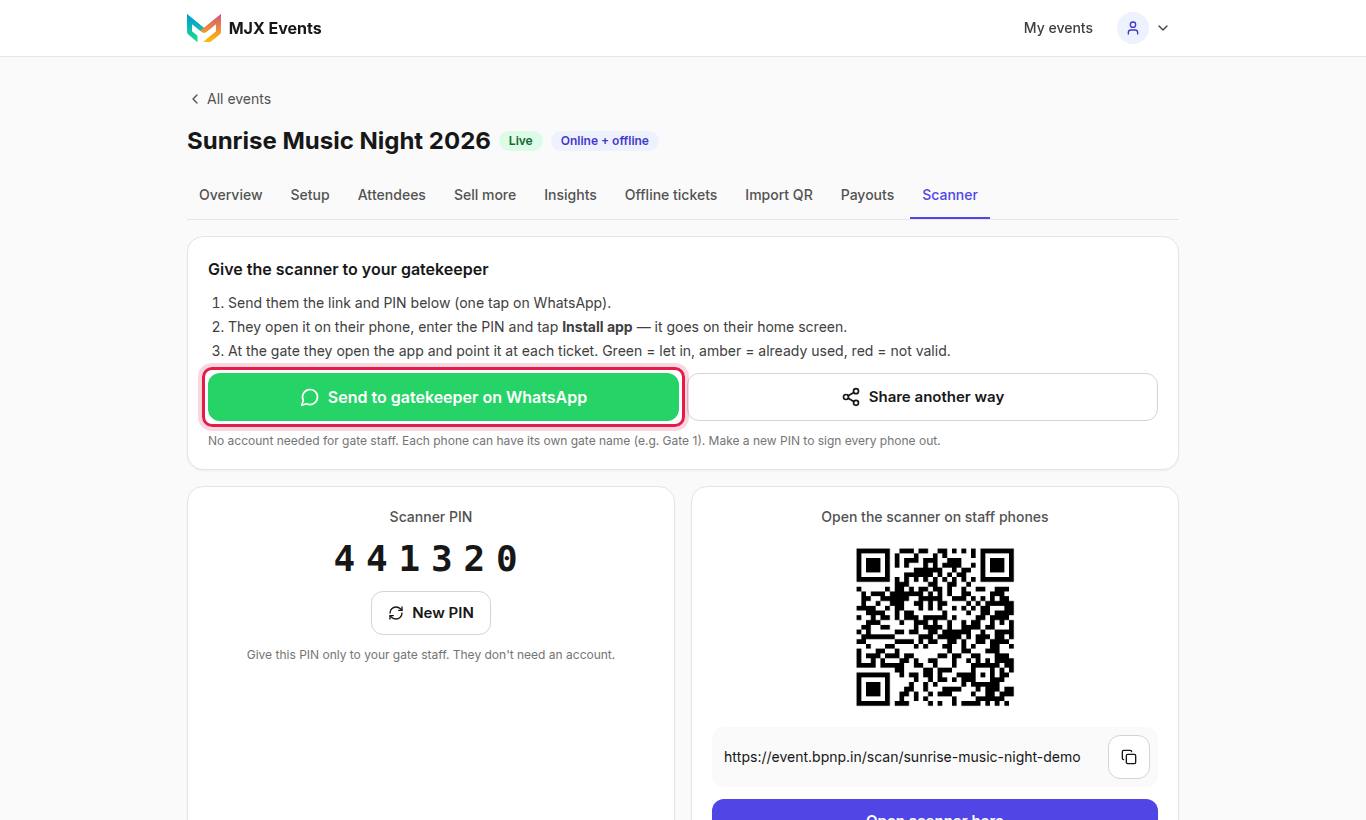
#How to give the scanner to your gatekeeper
"Give the scanner to your gatekeeper":
- Tap Send to gatekeeper on WhatsApp (or Share another way / Copy scanner link). It sends the link and the Scanner PIN.
- "They open it on their phone, enter the PIN and tap Install app — it goes on their home screen."
- "At the gate they open the app and point it at each ticket. Green = let in, amber = already used, red = not valid."
"No account needed for gate staff. Each phone can have its own gate name (e.g. Gate 1). Make a new PIN to sign every phone out."
To scan yourself, tap Open scanner here.
#New PIN
Tap New PIN: "Make a new PIN? Every phone scanning now will be signed out and needs the new PIN." Give the new PIN only to your gate staff.
#Gate scanners: who is scanning now
The Gate scanners card lists each phone with a green dot and Online, or "Last seen [time]". It refreshes every few seconds. "No phone is scanning yet. A phone shows here when it opens the scanner with the PIN."
#Gate scanner location (Pro)
Choose per event:
| Choice | What happens |
|---|---|
| Off | "Gate phones are not asked for their location." Places already saved are removed. |
| Optional (default) | "Each gate phone is asked. If it says no, it can still scan." |
| Mandatory | "A gate phone must allow its location before it can scan." |
On Pro you see a map pin on each phone's line showing where it was when the scanner opened.
#Gates for some ticket types
In the app, the gatekeeper's Gate button picks which ticket types that gate admits (for example ladies' entry). Others see OTHER GATE and are sent to the right gate.
#Scanning without internet (Android app)
Online, nothing changes: each scan is checked by the server in under a second. If the internet drops, the app checks from the ticket list it keeps on the phone, then sends the scans when it is back online. The website scanner needs internet. Make sure each phone opens the scanner once with internet before the gates open.
#How the counts work
- Checked in counts people, not tickets. A Family pass of 4 counts 4.
- On a multi-day event it becomes Checked in today, and a day runs from 5 am to 5 am.
- The Overview shows People in today, by gate and Recent scans; Insights (Pro) adds people in per hour.
#Check in by hand
In Attendees, tap Check in on a ticket (or Admit all N on a group pass). Undo with Undo. See Attendees and exports.
#Before the gates open
- Every gate phone has opened the scanner with the PIN and a gate name
- Printed passes for sale at the gate are marked sold, or a seller with Can sell any QR is at the counter
- One extra gate for large crowds on event-QR tickets (typing a code takes about 3 seconds)
- Phones charged, torch tested
#Questions people ask
Do I need special scanner hardware?
No. Any phone with a camera works, in the browser or the MJX Events app.
Can two gates let in the same ticket?
Not while they are online — the server decides each scan in under a second. Only two phones that are both offline at the same moment could, which is rare.
A gate phone was lost. What do I do?
Tap New PIN. Every phone scanning now is signed out and needs the new PIN.
What does "Checked in X / Y" count?
People in, against the people who can get in (valid tickets — online, printed and sold, and imported). Unsold printed passes are left out.