
Sell tickets as a seller (seller app)
For shops, agents and volunteers — sign in to the MJX Events seller app, sell a printed ticket, record the payment and send the buyer their ticket.
The seller app is where shops, agents and volunteers sell the printed tickets an organizer gave them. In MJX Events every printed ticket must be marked sold before it gets in at the gate, so recording the sale is what makes the ticket valid.
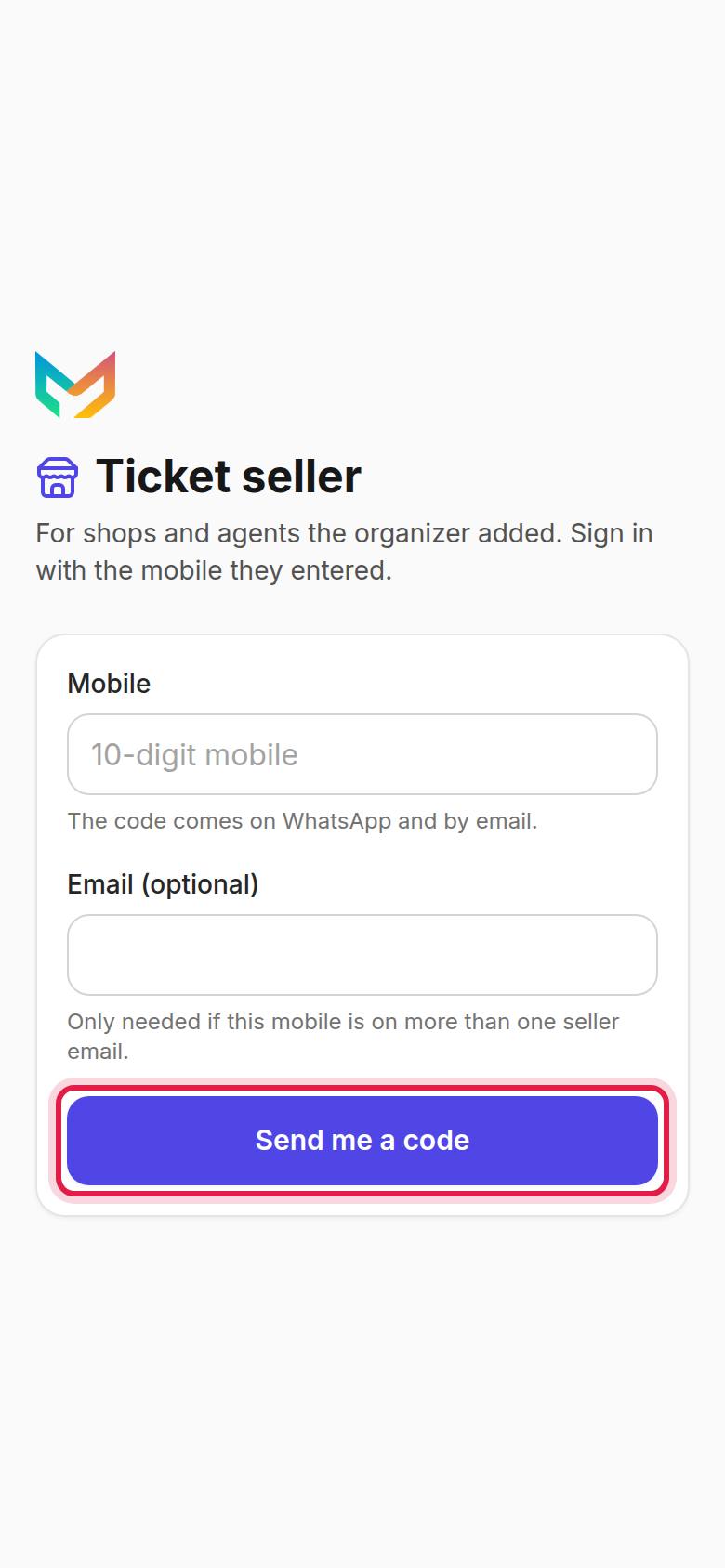
#How to sign in
- Open event.mjxtechnologies.com/sell on your phone (or open the MJX Events app and tap Seller).
- Under Mobile, type the 10-digit mobile the organizer registered for you.
- Tap Send me a code. "The code comes on WhatsApp and by email."
- Type the 6-digit Code and tap Sign in.
If the mobile is on more than one seller email, the page also asks Email (optional) — "Only needed if this mobile is on more than one seller email."
#How to sell a ticket
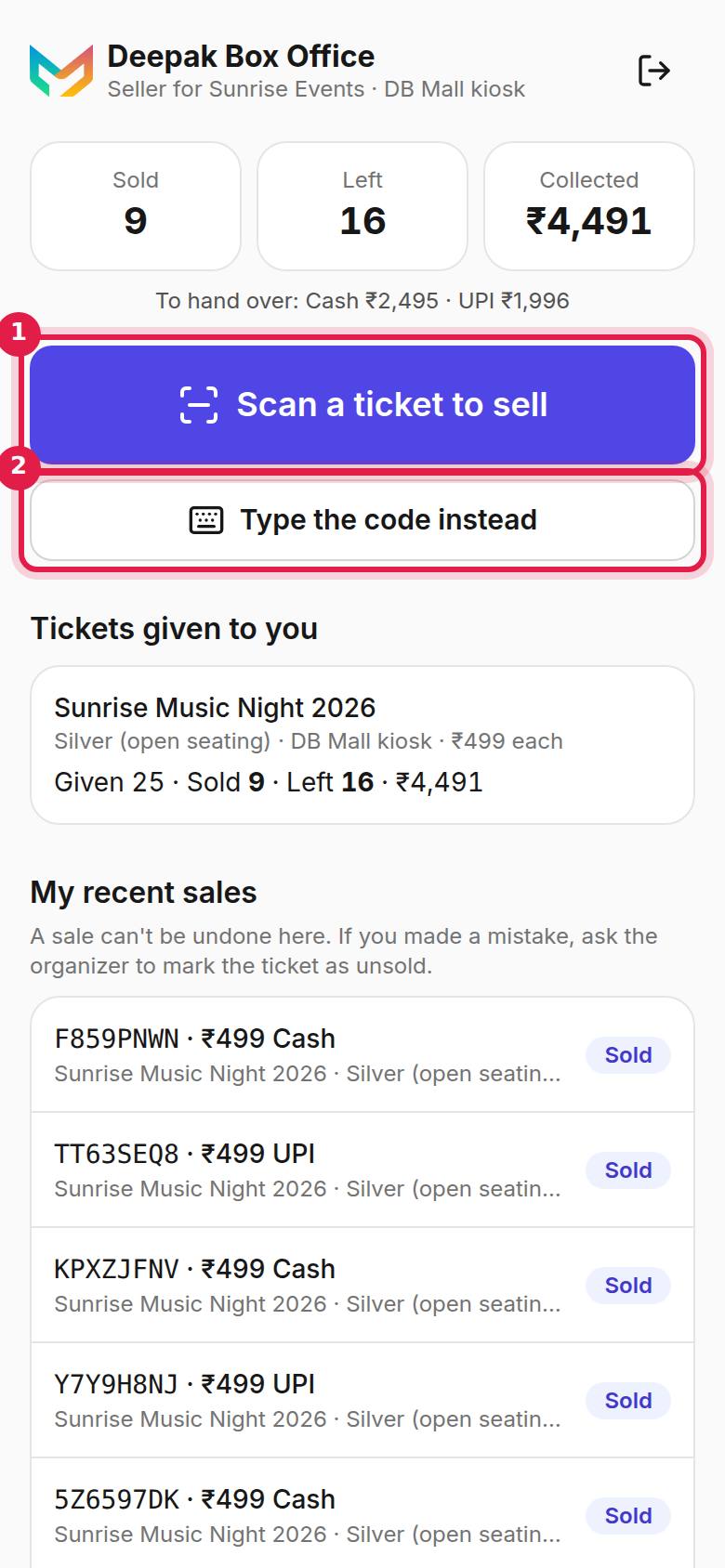
- Tap Scan a ticket to sell and point the camera at the ticket's QR. Or tap Type the code instead, type the Code on the ticket (5 or 8 letters) and tap Find ticket.
- Check the Amount ₹ and choose Paid by: Cash, UPI, Card, Other or Free pass.
- Type the buyer's mobile. For an event-QR ticket it says Buyer mobile (required); otherwise it is optional. "Ticket PDF goes on WhatsApp."
- If you like, add Buyer name (optional) and Buyer email (optional) ("Ticket PDF is emailed too"), and the printer's Stub number (optional).
- Tap Mark as sold.
#Selling event-QR tickets (Sell next)
Some events print one event QR on every ticket. Each ticket then gets its own 5-letter code when you sell it.
- Under Event-QR tickets you can sell, tap Sell next ticket (or scan the event QR and pick which tickets you are selling).
- The app shows a code. Write this code on the ticket.
- Type the buyer's mobile (required) and save.
- "Hand the ticket to the buyer."
At the gate, the gatekeeper finds this ticket by its 5-letter code or by the buyer's mobile.
#What you see on the home screen
| Section | What it shows |
|---|---|
| Tickets given to you | Each batch the organizer gave you, with Sold, Left and Collected |
| Event-QR tickets you can sell | Event-QR batches with tickets not sold yet |
| My recent sales | Your last sales |
If the organizer ticked Can sell any QR for you, the app says "You can sell any printed pass": "Take any pass from the pile, scan it and record the payment. It doesn't have to be one given to you."
#Messages you may see
| Message | What to do |
|---|---|
| "Cancelled by the organizer — do not sell." | Do not sell this ticket. Give it back to the organizer. |
| "Already used at the gate." | The ticket has been used. Do not sell it. |
| "This ticket is already sold." | It was sold before. Check with the organizer. |
| "Not one of your tickets. Check the code, or ask the organizer." | The ticket is not in your batches and you cannot sell any QR. |
| "The organizer has not published this event yet. Ask them to publish it, then sell." | Wait for the organizer to publish. |
| "The organizer has no ticket credits left. Ask them to buy credits, then sell." | The organizer must buy ticket credits first. |
| "You are no longer a seller. Ask the organizer." | The organizer stopped your access. |
#At the end of the day
Hand the money you collected to the organizer. The organizer sees each seller's Sold and To collect on the event's Payouts tab, so the numbers match what you recorded.
#Questions people ask
I made a mistake in a sale. Can I undo it?
No. "A sale can't be undone here. If you made a mistake, ask the organizer to mark the ticket as unsold."
Why can't I sign in?
Use the exact mobile the organizer entered for you. If the organizer stopped you, or switched off offline sales, sign-in is closed — ask the organizer.
Does the buyer get a ticket on their phone?
When you type the buyer's mobile, the ticket PDF goes to them on WhatsApp. When you also type their email, it is emailed too.