
Get paid — add your bank account for online ticket money
Set up payouts in MJX Events — business type, PAN, bank account and address, verification statuses, MJX Gateway or your own Razorpay, and counter UPI.
Get paid is where you tell MJX Events where to send your online ticket money. You fill it in once; after that every online sale is split automatically and your share goes to your bank account. "Free events never need this."
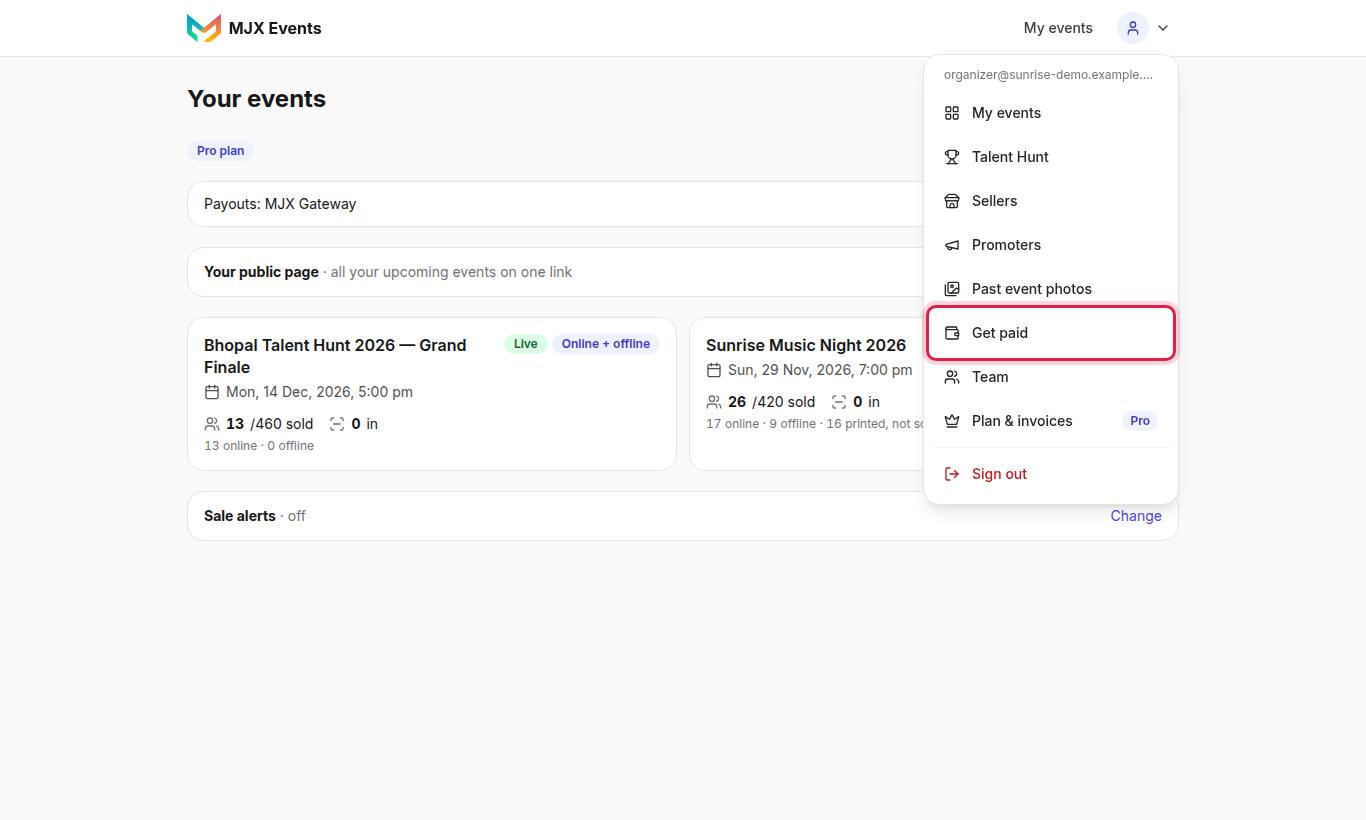
#Why you need it
A paid event can't go live for online booking until Get paid is set up: "Add your bank account so we can send you your sales." Free events and offline-only events don't need it.
#Choose how online money reaches you
"Choose how online ticket money reaches you." There are up to two tabs:
| Tab | What it means |
|---|---|
| MJX Gateway (Recommended) | "No payment-gateway account needed. Add your bank account and we'll send each sale to you automatically." MJX's payment partner is Razorpay or Zoho Payments; MJX chooses which. |
| My own Razorpay | Shown only when MJX allows it. "Money goes straight to your own Razorpay account. You handle your own settlements." |
#How to fill in the MJX Gateway form
- Legal / business name and Type: Individual, Proprietorship, Partnership, Private Limited, Public Limited, LLP, Trust, Society, NGO or Not yet registered.
- Contact name, PAN, Email, Mobile (10 digits).
- Individual, Not yet registered, Proprietorship: "Your own PAN (4th letter is P). Needed to verify your account for payouts."
- Other types: the business PAN.
- Address: house / street / area and PIN code — "City and state fill in by themselves."
- Bank account (stored encrypted): Account holder name, account number, Account number again, IFSC (e.g. HDFC0001234).
- Tap Save and verify.
#What the status means
| Status | Meaning |
|---|---|
| Not set up | Nothing saved yet |
| Being verified | The gateway is checking your account. Sales work; payouts wait. |
| Being checked | The gateway is checking it by hand. Nothing for you to do yet. |
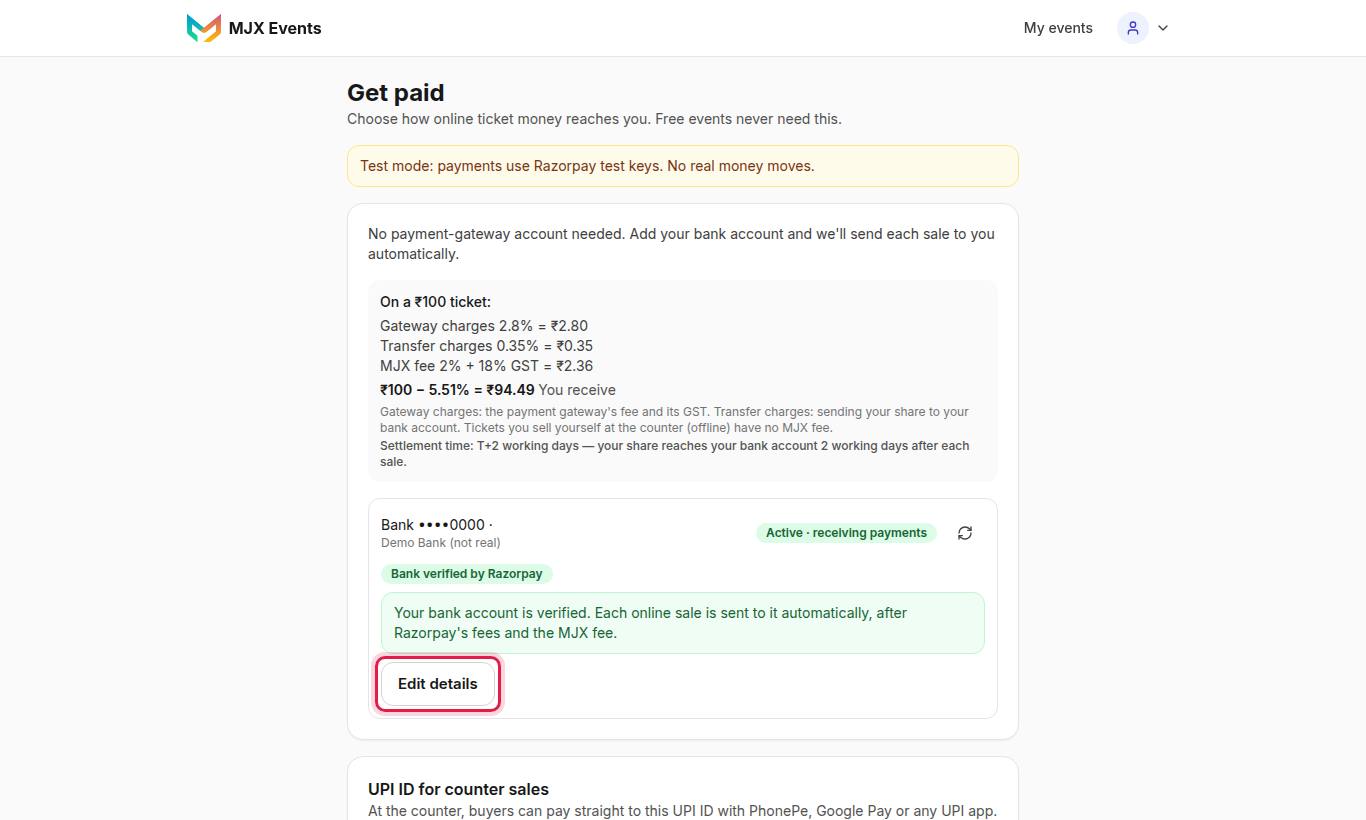
| Active · receiving payments | Payouts go to your bank |
| PAN and bank verified by Razorpay | Razorpay's own KYC checked your PAN and bank (shown as Bank verified by Razorpay when no PAN was checked) |
| Rejected | The gateway refused it. Correct the details with Edit details and save, or contact MJX support. |
Tap Refresh status to ask the gateway again.
#"Razorpay already has an account with this email…"
"Razorpay already has an account with [email] that MJX can't use. Change the Email under Get paid to a different address (for example name+events@yourdomain.com) and save again."
#The "On a ₹100 ticket" estimate
The page shows what one ₹100 online ticket leaves you, by payment method: gateway charges, transfer charges, the MJX fee and You receive. Under it: "Settlement time: T+2 working days — your share reaches your bank account 2 working days after each sale." See Fees and charges.
#My own Razorpay (when offered)
- Fill in Key ID (rzp_live_…) and Key Secret.
- In Razorpay Dashboard → Settings → Webhooks, add the URL from Copy webhook URL with events payment.captured and order.paid, and type the Webhook Secret.
- Tap Save and test connection. "The test creates a ₹1 order. Nobody is charged."
Keys are stored encrypted. The MJX fee on these sales is billed separately. To go back, tap Switch back to MJX Gateway.
#UPI ID for counter sales
On the same page, UPI ID for counter sales lets buyers at the counter pay your UPI ID directly — no gateway charges and no MJX fee. See Counter sales.
#Questions people ask
Do I need my own Razorpay or Zoho account?
No. With the MJX Gateway you only add your bank account; each online sale is sent to you automatically.
Can I sell before my account is verified?
Yes. "You can sell tickets now — payouts start once [the gateway] verifies the account." Money waits safely and goes out once it is active.
Which PAN do I give?
For Individual, Not yet registered and Proprietorship, your own PAN (4th letter is P). For other business types, the business PAN.
Who can see my bank details?
Only you, the account owner. Managers and Staff can't open Get paid. The bank account is stored encrypted.